
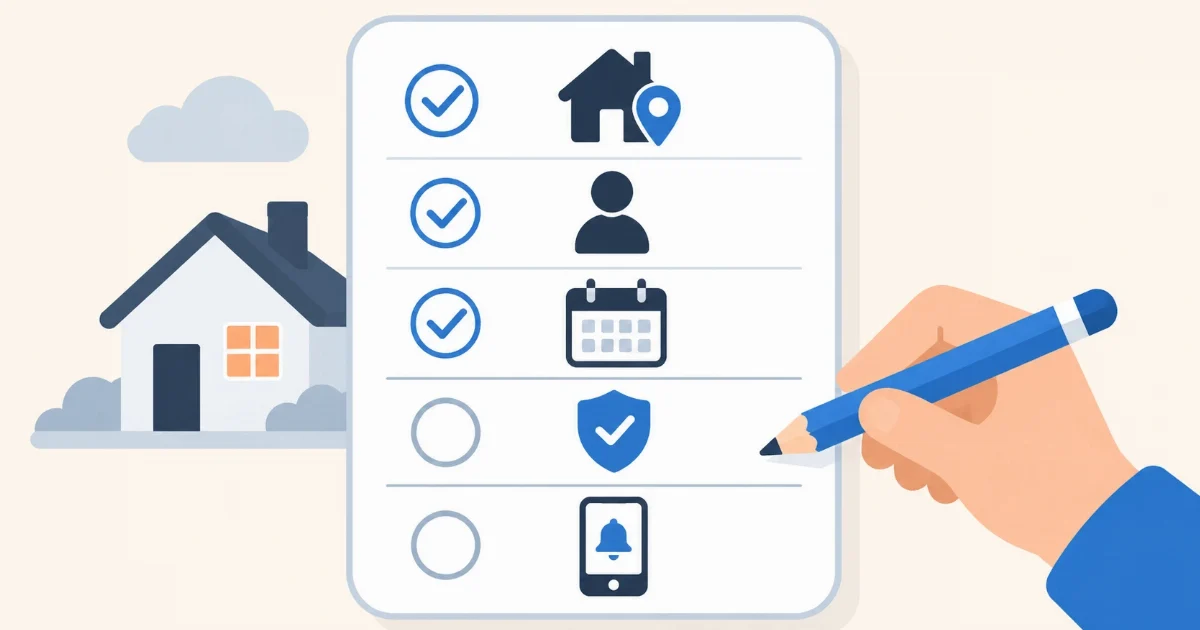

You have just signed in to Home Assistant for the first time and the screen is almost empty. Before you connect devices or create automations, a few things are worth getting right. It takes ten minutes and saves you trouble later. None of them needs apps or buying anything.
1. Location, time zone and units
Under Settings → System → General, check your home’s location, time zone, country, currency and units (metric or imperial). It looks like a detail, but automation times, sunrise and sunset, the weather and the prices on the Energy dashboard all come from here. If the time zone is wrong, a light scheduled for 8 pm turns on at another time.
2. The people in your home
Under Settings → People, create a person for each member of the household. If you want someone to be able to sign in, allow it and they get their own username and password. Two tips:
- Only one or two administrators. Everyone else as a regular user: they can use the home, but cannot change the setup by mistake.
- No shared accounts. With one user per person, the history shows who turned what on, and you can tell who is at home.
3. Security: two-step verification
If you sign in from outside your home, your Home Assistant is on the internet. Select your name at the bottom left, go to Security and turn on multi-factor authentication with a code app (Google Authenticator, Aegis or whichever you use). Ask the other administrators to do the same. And use a long password that you do not use anywhere else.
4. Areas and floors
Under Settings → Areas, labels & zones, create the rooms of your home (living room, kitchen, bedroom) and, if you have more than one, the floors. When you add a device, assign it to its area. Doing it from the start pays off: dashboards sort themselves by room, from this version names use the area as context, and in an automation you can say “turn off the whole living room” without picking each device.
5. The phone app
Install the official Home Assistant app on your phone and sign in with your user. Allow location and notifications. That alone gives you two very useful things: Home Assistant knows whether you are home or away, and it can alert you. Under Settings → Companion app → Manage sensors you choose what the phone shares (battery, whether it is charging, the Wi-Fi network and more).
Try it: under Developer tools → Actions, look for the notify.mobile_app_ action followed by your phone’s name, type a message and run it. If the notification arrives, your alert channel is ready for your automations.
6. Automatic backups
This is what people leave for later, and what they regret most. Under Settings → System → Backups, turn on automatic backups, choose how often (daily is fine) and how many to keep. Home Assistant encrypts backups with an encryption key: download the “emergency kit” it offers and keep it outside Home Assistant, for example in your password manager. Without that key, the backup cannot be restored.
And one rule: a backup kept only on the same device is not a backup. If the disk fails, you lose both. Keep at least one somewhere else, on your computer or in a cloud service.
7. A calm way to update
Home Assistant releases a version every month plus several fixes. You do not need to install each one on day one. A habit that works: wait for the first fix (the x.1), read the breaking changes section of the official notes and make a backup right before updating. Every month we publish a plain-language summary of each version on this blog.
A note if your Home Assistant is in the cloud
In a home installation, Home Assistant discovers many devices on your network by itself and shows them under Settings → Devices & services. In the cloud it is not on your network, so that automatic discovery does not show up: devices connect through their cloud or through MQTT. It is not a fault, it is how it works.
With Coiaca Cloud HA, part of this is already done
On Coiaca Cloud HA, access from outside your home with HTTPS is already set up, and from your panel you make a backup with one click and download it whenever you like. Home Assistant updates are a button too, with automatic rollback if the new version does not start. The rest of this list, location, people, security, areas and the app, is yours and takes ten minutes.
Sources
- Home Assistant: basic configuration
- Home Assistant: people
- Home Assistant: multi-factor authentication
- Home Assistant: areas
- Home Assistant app: notifications
- Home Assistant: backups
Coiaca is not affiliated with the Open Home Foundation or Nabu Casa. Home Assistant is a trademark of its owners.