
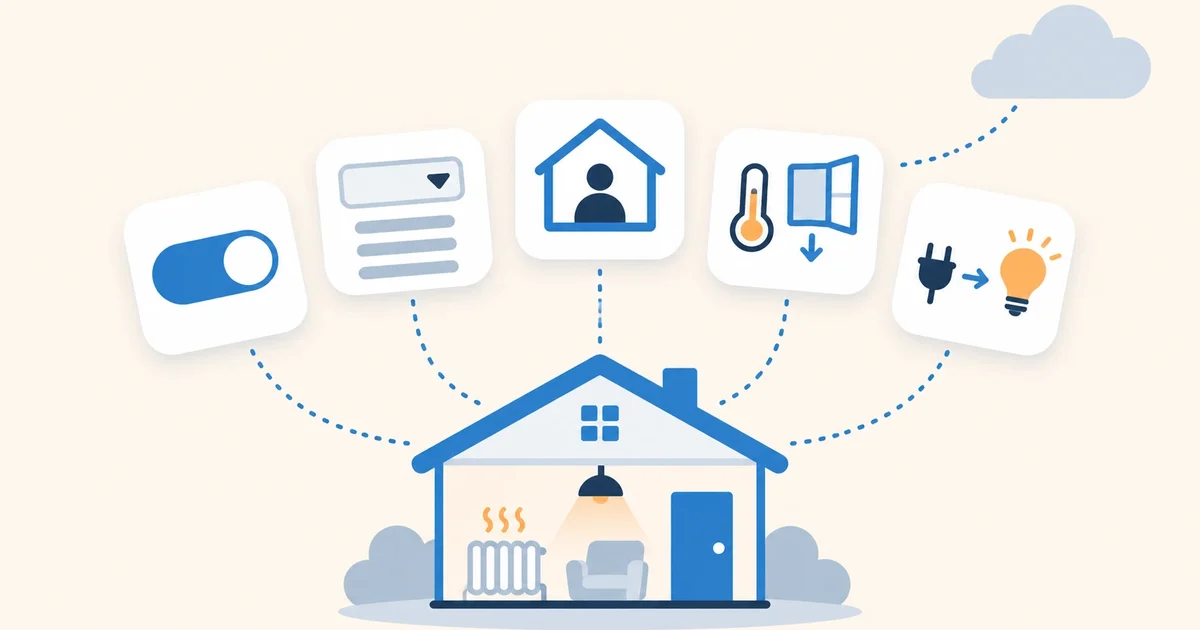

Home Assistant automations get complicated fast: the same condition repeated in ten places, temperatures typed by hand in every rule, exceptions for when you have guests… Helpers solve a good part of that. They’re entities you create yourself, with no hardware, that store a value or work something out. These are the five we use most at home.
You create all of them in Settings → Devices & services → Helpers → Create helper.
1. Toggle: “Guest mode”
The simplest helper: a switch that turns nothing on, it just remembers “yes” or “no”. It’s for telling Home Assistant something it can’t know on its own.
The example: your automations turn off the heating when every family phone has left the house. But with guests over, the house isn’t empty even without a single phone. You create a Guest mode toggle, put it on your dashboard, and your automations take it into account. Turn it on when they arrive, off when they leave.
2. Dropdown: “Comfort mode”
A dropdown stores one option from a list. With one called Comfort mode and the options Comfort, Home, Night and Away, you change all the heating at once: a single automation reads the mode and sets each radiator to its temperature.
- alias: Heating - apply comfort mode
  triggers:
    - trigger: state
      entity_id: input_select.comfort_mode
  actions:
    - choose:
        - conditions:
            - condition: state
              entity_id: input_select.comfort_mode
              state: "Comfort"
          sequence:
            - action: climate.set_temperature
              target:
                entity_id: climate.living_room_radiator
              data:
                temperature: 23
            - action: climate.set_temperature
              target:
                entity_id: climate.bedroom_radiator
              data:
                temperature: 21
        - conditions:
            - condition: state
              entity_id: input_select.comfort_mode
              state: "Away"
          sequence:
            - action: climate.set_temperature
              target:
                entity_id:
                  - climate.living_room_radiator
                  - climate.bedroom_radiator
              data:
                temperature: 5
Temperatures live in one place. If tomorrow you want the living room at 22, you change one number. And other automations only have to change the mode: “when the house empties, set Away“, “at 11 p.m., set Night“. On the dashboard, a row of buttons (a sofa, a house, a moon, a door) changes the mode with one tap.
3. Template: “House occupied”
A Template helper works out its value from other entities. Choose Binary sensor and write the condition once:
{{ is_state('person.ana', 'home')
   or is_state('person.luis', 'home')
   or is_state('input_boolean.guest_mode', 'on') }}
From then on, every automation asks the same thing: is House occupied on? Turn off the heating and the air conditioner, warn you about a light left on, start the presence simulation… If someone joins the family tomorrow, you add them in one place.
Each person’s location comes from the Home Assistant app on their phone. For more accuracy, the app’s Wi-Fi network sensor helps too: if the phone is on the home Wi-Fi, they’re home, even if the GPS isn’t sure. You can combine both in another template per person.
4. Trend: “Window open”
A trend sensor turns on when another value rises or falls faster than usual. With the thermometer of a smart radiator valve (thermostatic valves have one), it detects an open window without a sensor on the window: if the temperature drops suddenly, cold air got in.
You can create it from Helpers, but the rate of change can only be set in YAML. In configuration.yaml:
binary_sensor:
  - platform: trend
    sensors:
      living_room_window:
        entity_id: sensor.living_room_temperature
        sample_duration: 300    # look at the last 5 minutes
        max_samples: 5
        min_samples: 2
        min_gradient: -0.0027   # a 0.8 °C drop in 5 minutes (°C per second)
Watch out for min_gradient: it’s in units per second. A 0.8 °C drop in 5 minutes is 0.8 / 300 = 0.0027 °C per second, negative because it’s falling. With the sensor ready, an automation turns the radiator off while the window is open and back on when it closes. It’s a very common mistake: if you set -0.16 thinking “degrees every 5 minutes”, the sensor never turns on. If -0.0027 fires too easily or not at all, adjust the number: it depends on your radiator and where its thermometer sits.
5. Change device type of a switch: the plug that’s a lamp
A smart plug shows up in Home Assistant as a switch, even if what’s plugged in is a lamp. The Change device type of a switch helper (Switch as X) turns it into a light, cover, fan, lock, siren or valve.
It looks like a detail, but it changes a lot: the plug’s lamp joins “turn off all lights”, its room’s light controls and your scenes, and voice assistants understand it as a light. We use it for a bedside lamp.
A bonus: the generic thermostat
There’s a sixth helper that deserves its own article: the generic thermostat, which turns a switch and a temperature sensor into a real thermostat. We use it to control the air conditioner over infrared.
With Coiaca Cloud HA
All these helpers work the same in Coiaca Cloud HA, official, unmodified Home Assistant on your own private cloud instance. And presence works better than ever: the phone app reports your location to your instance wherever you are, without opening ports at home.
With the 30-day free trial you can create your first helpers and automations before the first payment. If it’s not for you, cancel before day 31.
Try Coiaca Cloud HA free for 30 days
Sources
- Home Assistant: toggle (input_boolean)
- Home Assistant: dropdown (input_select)
- Home Assistant: templates
- Home Assistant: trend
- Home Assistant: change device type of a switch
Coiaca is not affiliated with the Open Home Foundation or Nabu Casa. The brands mentioned belong to their owners.