
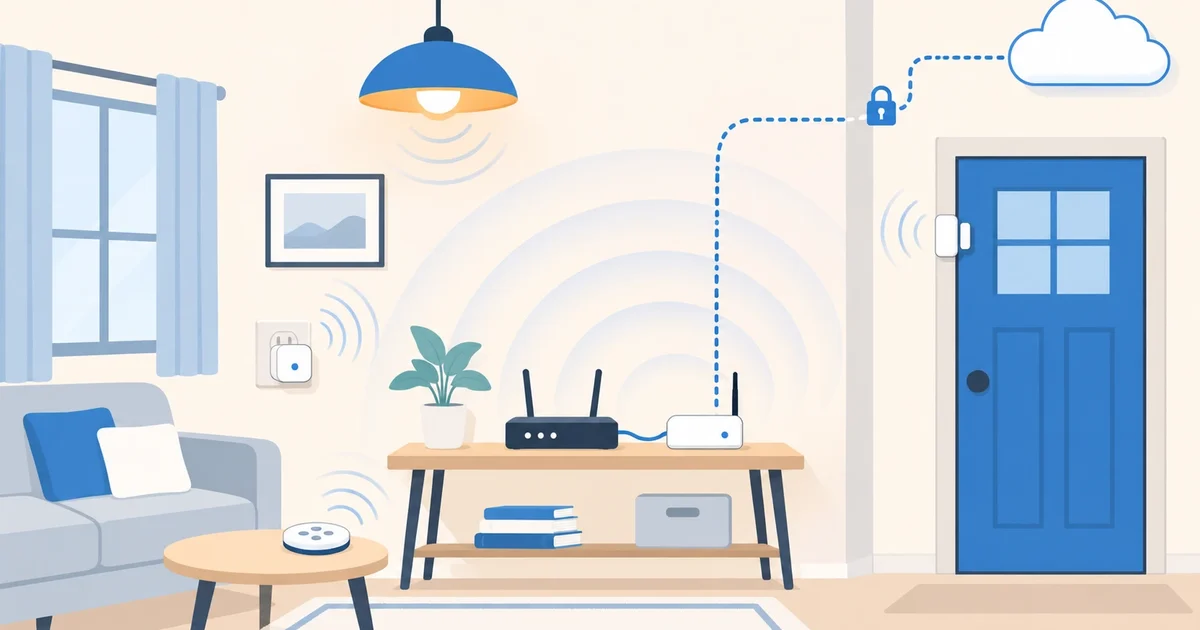

Thousands of bulbs, plugs, sensors, remotes and thermostats speak Zigbee, from brands like Aqara, Philips Hue, IKEA, SONOFF, Tuya and many others: a low-power radio network that needs a coordinator close to the devices, which means in your home. If your Home Assistant runs in the cloud, the piece that ties both together is a network Zigbee coordinator such as the SMLIGHT SLZB-06M: it plugs into your router with a cable, and Home Assistant talks to it over the internet. Here’s how to set it up so it doesn’t drop when your home IP changes, and without leaving the door open to anyone.
How it works and what needs solving
Home Assistant’s Zigbee Home Automation (ZHA) integration connects to the coordinator over a TCP port, 6638. With Home Assistant in the cloud, that connection reaches your home’s public address and the router passes it on to the coordinator. That raises two problems:
- Your home IP changes. Most internet providers give you a public IP that changes from time to time. If ZHA points to the IP, every change leaves it disconnected until you reconfigure it.
- An open port is a door. Anyone who reaches port 6638 can talk to your Zigbee network. It can’t be left open to the whole internet.
The coordinator itself solves both: its firmware (SLZB-OS) updates a dynamic DNS name whenever the IP changes, and it only accepts connections from the address you tell it.
What you need
- An SMLIGHT SLZB-06M coordinator (or another SLZB-06 model) running the Zigbee coordinator firmware, connected with a network cable.
- Access to your router’s settings, to reserve a local IP and open a port.
- A free dynamic DNS account. The example uses DuckDNS.
- Your Home Assistant in the cloud.
If your provider uses CGNAT (your router has no public IP of its own), opening ports won’t work. We’re preparing a way to connect the coordinator without opening ports; we’ll cover it on the blog.
Which devices work?
Zigbee is a standard, so you’re not tied to one brand: the vast majority of Zigbee 3.0 devices work with ZHA, and the SLZB-06M handles up to 200. Before buying one, look up the exact model in the Zigbee device compatibility database, which shows whether it works with ZHA.
A heads-up if you shop at IKEA: its new range, such as the KAJPLATS bulbs, uses Matter over Thread instead of Zigbee. The SLZB-06M can also act as a Thread radio over the network, just like with Zigbee; we’re testing whether it works with a cloud Home Assistant and will cover it on the blog. If you want to play it safe today, the earlier TRÅDFRI products are Zigbee.
Step 1: prepare the coordinator
- Open the coordinator’s web page (its local IP) and update SLZB-OS to the latest stable version from the update section. Dynamic DNS and the allowed-IP list need a recent version.
- Check that the working mode is Zigbee coordinator and that the port is 6638.
- On your router, reserve a fixed local IP for the coordinator (in the DHCP settings), so the port forward doesn’t break.
Step 2: a name that follows your IP
- Create a subdomain on DuckDNS, for example
myhome.duckdns.org, and copy your token. - On the coordinator’s web page, open the DDNS section, turn on Enable DDNS client and fill in these three fields:
- Public IP provider request URL (where to look up your public IP):
https://api.ipify.org - DDNS provider request URL (the address that updates your name):
https://www.duckdns.org/update?domains=myhome&token=YOUR_TOKEN&ip={{ip}} - Update interval (how often it checks, in seconds): 300.
From then on, when your home IP changes, the coordinator updates the name within a few minutes. If your router already has a dynamic DNS client, you can use that instead.
Step 3: shut the door on everyone else
On the coordinator’s web page, in the Security section, turn on Enable IP whitelist for socket and, under Allowed IP, add your Coiaca Cloud HA instance’s IP address, which we provide. If you can’t find it, email support@coiaca.com and we’ll send it to you. That way, even if someone finds the open port, the coordinator refuses the connection. Don’t open the port without this step.
Step 4: open the port on the router
On the router, look for the port forwarding section (it may be called NAT or virtual servers) and create a rule: TCP, external port 6638, to the coordinator’s local IP, port 6638. If your router lets you restrict the rule by source IP, add your instance’s IP there too: it’s a second lock.
Step 5: connect Zigbee Home Automation
- In Home Assistant, go to Settings → Devices & services → Add integration → Zigbee Home Automation, and choose to enter the connection manually.
- Radio type: EZSP (the SLZB-06M has a Silicon Labs chip).
- Path:
socket://myhome.duckdns.org:6638, with the name instead of the IP. Speed: 115200.
If you already had ZHA running with the IP, there’s no need to start over: from the integration’s options you can change the adapter path and keep your Zigbee network.
Step 6: test it and add your devices
Restart the router to force an IP change. In our test, after 5 minutes (the interval you set) the name already pointed to the new IP. Meanwhile, ZHA shows an error under Integrations; leave it alone: as soon as the name updates, it reconnects on its own. Then, in ZHA, tap Add device and put each bulb, remote or sensor into pairing mode as its manual explains. They pair just as with a coordinator at home.
Good to know
- The ZHA documentation doesn’t recommend running the coordinator over the internet, because of latency and dropouts. In our setup it runs stably, but a very unstable connection will show.
- If the internet goes down at home, Home Assistant can’t control your Zigbee devices until it’s back.
- The IP change isn’t instant: there can be up to 5 minutes without Zigbee (at most, the interval you set). If you lower the interval to 60 seconds, the outage is shorter.
Zigbee on your Home Assistant in the cloud
Coiaca Cloud HA is official, unmodified Home Assistant on your own private instance, with ZHA available as in any Home Assistant and Zigbee2MQTT ready to enable with one button. It’s ready in about 15 minutes, with an HTTPS address for the app and an MQTT broker with TLS already set up.
With the 30-day free trial you can connect your coordinator and your first Zigbee devices without paying anything. If it’s not for you, cancel before day 31.
Try Coiaca Cloud HA free for 30 days
Sources
- Home Assistant: Zigbee Home Automation
- SLZB-OS: DDNS
- SLZB-OS: security
- SLZB-OS: Zigbee2MQTT and ZHA settings
- DuckDNS
Coiaca is not affiliated with SMLIGHT, Aqara, Signify (Philips Hue), IKEA, SONOFF, Tuya, the Open Home Foundation or Nabu Casa. The brands mentioned belong to their owners.